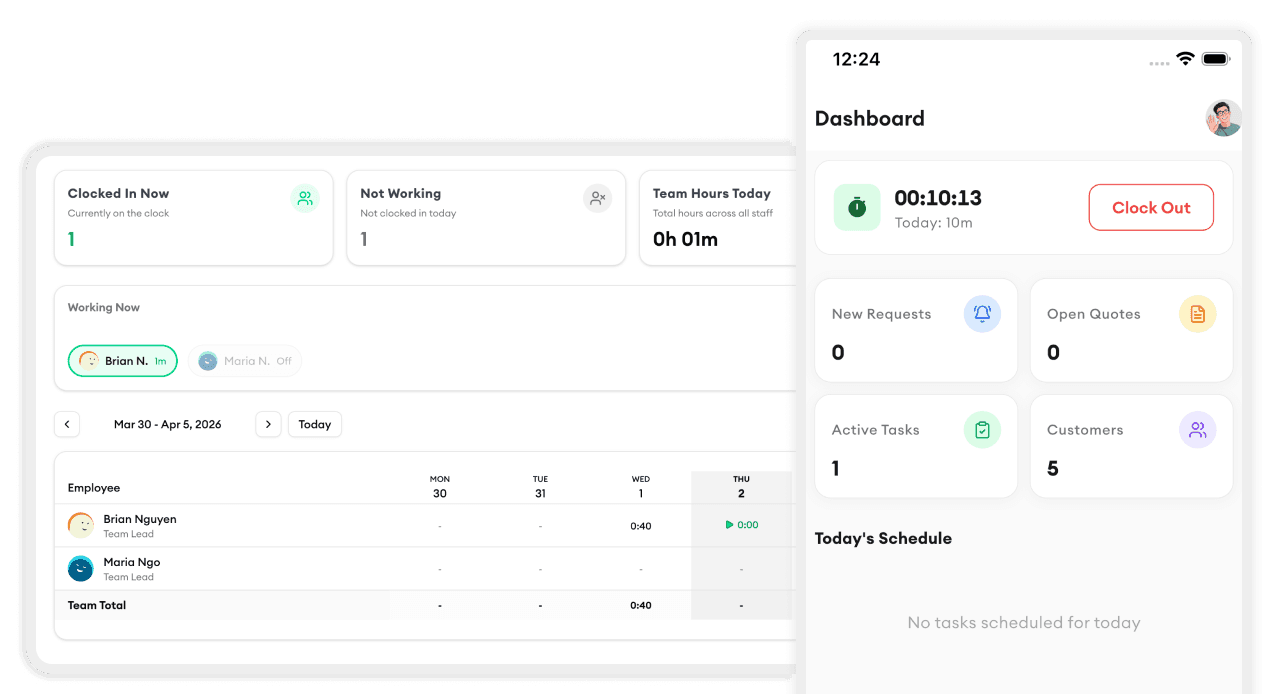
Welcome to Homitask! Whether you run a cleaning crew, a landscaping company, or any other home service business, getting started is quick and painless. Here's everything you need to know to go from sign-up to your first scheduled job.
Step 1: Create Your Account
Head to homitask.com and click Start Free Trial. Enter your business name, email, and a password. No credit card required — you get 14 days completely free.
Once you're in, you'll land on your dashboard. It's clean and minimal by design. Everything you need is one click away.
Step 2: Set Up Your Services
Before you can book jobs, you need to define what you offer.
- Navigate to Settings → Services
- Click Add Service and give it a name (e.g., "Standard Clean", "Lawn Mow", "Gutter Clean")
- Set a default duration and price
- Add any notes your team should see when that service is booked
You can add as many services as you need. Bundles and custom line items are also supported if your pricing varies by job.
Step 3: Add Your Team
Your crew needs access to Homitask to see their schedule, update job statuses, and communicate with you.
- Go to Team → Add Member
- Enter their name and email address
- Choose a role: Admin (full access) or Field Tech (sees their own jobs only)
- They'll get an email invite to create their account
Field techs get a simple mobile view — just their jobs for the day, with directions and notes. No clutter.
Step 4: Schedule Your First Job
Now for the good part.
- Click + New Job from the dashboard or calendar
- Search for an existing customer or create a new one on the fly
- Select the service, set the date and time, and assign a team member
- Add any special notes (gate code, dog in yard, etc.)
- Click Save
The job will immediately appear on your calendar and your tech's schedule. If you have SMS notifications enabled, the customer will receive a confirmation automatically.
Step 5: Get Paid
After a job is marked complete, Homitask can automatically generate an invoice and send it to the customer. You can collect payment via credit card, bank transfer, or mark it as cash/check.
Invoices are tracked in Finance → Invoices so you always know who owes you money.
That's it — you're up and running. Most new users have their first job scheduled within 5 minutes of signing up. If you get stuck, our support team is available via live chat or at support@homitask.com.
Ready to simplify your business? Start your free trial today.